Showing posts with label Editor. Show all posts

Monday, June 17, 2013

Review: Text editor UltraEdit 19 is feature-packed and flexible

AppId is over the quota

UltraEdit 19 is a feature-rich and powerful text editor. It doesn't just have a kitchen-sink list of features. It's got a kitchen sink full of bells and whistles crammed inside another sink. When many developers are focusing on stripped-down software for the exploding mobile and tablet markets, it's nice to see someone out there is still thinking, "But what else can we add?"

This kind of feature overload can result in a confusing and unusable product, one where many users don't even know 90% of the features exist. (Microsoft Word, I'm looking at you.) However, UltraEdit is targeting an audience with many viable editing choices, and so, it is focused on usability as well. You can design, and save, your own interface configuration with a mix of windows, toolbars, and panels, or you can flip to one of the many predefined interfaces, from the stripped-down "Notepad Replacement" to the full-on "Power User."

Having a lot of tools for users, and making them customizable, is a major theme in UltraEdit. Syntax highlighting support for the most commonly used languages is built in, and users have contributed files to handle hundreds of others at http://www.ultraedit.com/downloads/extras.html . Stylistic reformatting, however, is limited to C\C++ and Java.
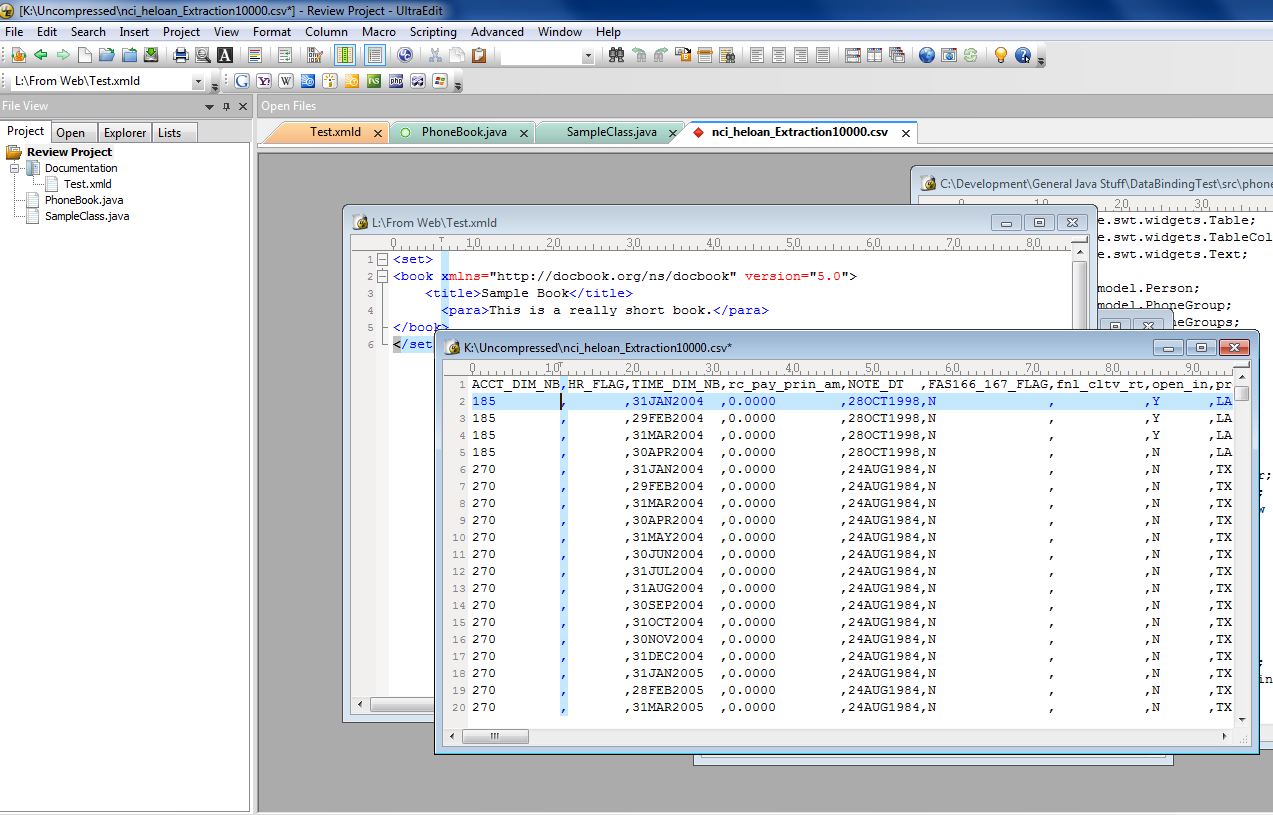
Ultraedit can display CSV files in neatly-aligned columns, a boon for viewing and editing them.

UltraEdit 19 includes templates for many common structures, and you can easily add your own. This allows for the quick creation of a "skeleton" of boilerplate text or code. The template function inserts a section of text which is "aware" of what needs to be changed or user-defined: It does not simply paste in a static block.

There's usually more than one way to do things, which is good if you have a preferred way, though users with no preference might not know which one to pick. For example, UltraEdit supports three different regular expression syntaxes, which differ in mostly subtle ways.

If the built-in tools and functions weren't enough, UltraEdit has a full-featured macro/scripting engine, using JavaScript. As with syntax-highlighting files, a wide variety of user-contributed scripts are available.

One feature of UltraEdit that may prove useful to those using other text editors is the ability to create projects that organize multiple files. Many excellent text editors, such as Notepad++, are entirely document-centric. UltraEdit has a robust "Project" feature which makes it easy to arrange multiple files, scattered over the disk, into a logical hierarchy. This is especially useful for those whose work requirements involve editing multiple files whose on-disk storage hierarchy may not be at all related to their project hierarchy.

UltraEdit's colored tabs aid in managing multiple file types in a project.

Due to the highly kitchen-sink nature of UltraEdit, it is most valuable to those whose work involves a many different types of text editing or file manipulation. The more specialized your tasks, the better the odds a narrowly-focused tool would work for you. UltraEdit is inexpensive for its degree of functionality, however. If you don't have a modern text editor, but need one, or if you are bumping against the limits of the one you are using, UltraEdit is well worth checking out.


View the original article here

Wednesday, May 8, 2013

Review: Customize and alter your photos with PC Image Editor

AppId is over the quota

It’s a common misconception that you need Photoshop to get really good looking photos. The truth is that there are many excellent image editors out there on the Internet that allow you to make changes to your photos which are as good as anything Photoshop could do. PC Image Editor is one such app, free for personal use ($24 for business use), which allows you to make changes to your images.

Installation is extremely easy and extremely fast, with no hidden spyware surprises trying to sneak in, such as toolbars. When starting it up for the first time, you will be told that the software is free for personal use, while commercial users need to purchase a license. This becomes one of the main irritants of the entire software app – every time you open up the app to use it for free, that same nag screen is going to keep coming up because you haven’t entered a license code yet. I really hope the developer provides some way in a future release for free users to disable that screen as it gets really annoying after a while.

PC Image Editor provides you with lots of options to customize your images. The photo updates in real time as you tweak each option.

Once you’ve zapped the nag screen, click “open” and navigate to the image you want to make adjustments to. Then on the right hand side, you will see all of the tools  open to you. For example, you can resize the photo to either a size that you specify or one of the predefined sizes that the app offers. You can also rotate to various angles, zoom, sharpen, as well as change the color and contrast .
There are also numerous effects on offer which takes a page out of Photoshop's book. PC Image Editor offers a wide range of filters and effects such as blurring, twirling (turning the picture into a round shape) and changing the angle of the picture. If you would like to achieve a unique effect to the picture, then the filters include embossing, halftone (which pretty much turns the color picture black and white), and changing the RGB values of the colors.

Each adjustment can easily be made by moving the slider back and forth.

Every change is made in real time so you can see how each step of the affects the image. If you realize you’re making a right dog’s dinner of the image, you can click the “undo” button to roll back the last change you made. Once everything is to your satisfaction, you can save or print the new image . Formats which you can save in include all the usual suspects such as JPG, PNG, GIF, BMP and TIFF.

There is also the option to scan an image directly into PC Image Editor using a scanner, but every time I clicked on the “scan” button, PC Image Editor crashed and closed. I don’t know if this is a Windows 8 issue or an issue with PC Image Editor. So it may work for you. Let us know in the comments below if this is a problem you encounter.

These days, with ready access to image editors, there is no excuse for bad photos. If you find that your images need a bit of jazzing up,PC Image Editor offers a basic selection of  editing tools that provide the most-used features of more expensive applications. Although it’s not the best image editing program ever, it’s worth a try if you need a few basic tweaks.

Note: The Download button on the Product Information page will download the software to your system.

Mark O'Neill

Expatriate Scotsman now living in Wurzburg, Germany, freelance writer, frustrated future bestselling author, obsessed bibliophile. Other interests include trying to understand The Architect in the Matrix movies, decrypting codes and ciphers, and trying to persuade my landlord and my wife to let me have a Highland Cow for a pet.
More by Mark O'Neill


View the original article here

Friday, April 5, 2013

Review: WeVideo is a cloud-based video editor that makes editing in your browser fun and simple

AppId is over the quota

The cloud is all the rage these days. We've got email in the cloud, backup in the cloud, not to mention project management, image editing, and pretty much everything else that you use your PC for in the cloud. WeVideo wants to add one more type to the mix: A cloud-based video editor.

What makes it potentially hard to get off the ground with a cloud-based video editor is that all of your raw footage must find its way into the editor. A decent five-minute video could require hours of raw footage to create. Since most users have connections with slower upload than download speeds, you could be uploading footage for hours on end before you can even begin editing. Fortunately, WeVideo's seamless connection with Dropbox and others cloud-based file storage services makes this less of an issue.

Erez ZukermanWeVideo makes it easy to export to connected cloud services, but its free option is watermarked.

When I use my Galaxy S III to shoot footage, it is automatically uploaded to Dropbox. The upload takes time, but I don't need to think about it or do anything to make it happen. Once the files are in Dropbox, I only need to point WeVideo at them, and it pulls them into the editor very quickly. Feeding WeVideo with a gigabyte of footage took less than ten minutes, once it was all on Dropbox.

Once your footage is in the editor, the editing experience is simple and pleasant. WeVideo offers a timeline you can drag clips onto. It is easy to trim clips as needed and add transitions, and there's a rich library of soundtracks you can use. Fading audio in and out takes just a couple of clicks, and the whole system felt responsive and would be familiar to anyone with experience with desktop video applications.

One advantage of WeVideo's cloud-based nature is collaboration: You can invite friends to upload footage to your project, and even create different edits based on the same footage. This collaborative workflow is one of the service's main selling points.

Once you're done editing, it's time to export your work. Free accounts can only export very low resolution (480p) watermarked video. I understand the limitation, but I wish WeVideo was more upfront about it and made it clear as part of the registration process, rather than reveal it at the last possible moment when the editing work has been done. It is easy to connect WeVideo to YouTube and other Web video services, so you don't have to download a file and upload it to YouTube yourself–WeVideo does the whole thing on its own.
If you need to collaborate on a video project with a distributed team, WeVideo offers important benefits and can let you share footage and edits in ways that aren't possible otherwise. It can also come in handy for the occasional solo project, as long as you don't mind uploading your footage to the cloud prior to editing.

Note: The Download button on the Product Information page takes you to the vendor's site, where you can use the latest version of this Web-based software.

Erez Zukerman

Endlessly tweaking his workflow for comfort and efficiency, Erez is a freelance writer on a mission to discover the simplest, coolest, and most effective software and websites to make tomorrow happen today.
More by Erez Zukerman


View the original article here

Thursday, February 21, 2013

Review: Free editor you can open and edit from more than 70 different file formats for free

In our everyday lives, we use a number of different programs, edit the various file types, with whom we work. There are word for .doc files, Excel for .xls files, PowerPoint for presentations, image editing software, video and music player, PDF Viewer, ZIP Expander hex editors, and the list goes on. Most of us have to use a separate program for each of these purposes and never stop to think about. Free editor claims to display and edit all file types listed above, and more, all alone to open.

For .doc files, links, highlighting, free editor contains all the basic formatting options, including tables, etc..

Free editor, as you can gather from the name is completely free to use, according to its support pages, can open and encode and edit by 75 different file types, including Microsoft Office files, other document files, image files, Windows files, and files. I chose to run my tests with simple DOCX and XLSX files and took over editor kidneys free. I was immediately impressed with how easy and responsive, it felt; There were no hang and no waiting, and apart from a strange but harmless error message appeared every time, when I opened a Word 2007 file, I could every file I chose to edit.

For Word documents support all basic editing free editor like formatting, images, links, tables, numbered or bullet lists, search and replace and more. The tables toolbar is very easy to use, and exceeds even the word native table tools. The editor contains also a spell checker, which is a nice touch. While free editor each DOC and DOCX File showed that I it, not it to facts and images that were already in the document.

With Excel files get things not Excel the formula bar a bit more challenging, such as free editor, it makes it is impossible included to use formulas. While you can insert a formula you want, there are no helpful suggestions to help you, and after entering a formula and a result, there is no easy way to know which formula to the cell will be written. Surprisingly, free editor contains advanced options for editing, such as conditional formatting – but without an oversight that so great it is not enough missing formula bar, such as the easy.

Spreadsheet editing in the free editor is not very intuitive, but includes advanced features such as conditional formatting and other customizations of the cell.

However, this is not the only big oversight. When it comes to editing documents, most people tend to use basic shortcuts. and what is fundamental as CTRL + C for copy and CTRL + V for paste? Both these shortcuts are NotSupported in free editor, makes you use shortcut menu or the toolbar buttons that are provided to the copy and paste. Another badly missing shortcut is CTRL + I for italic, was assigned to show the document info. CTRL + B for fat and CTRL + U for underline work, making it even stranger. Other key combinations such as CTRL + F for find, CTRL + H for find and replace, CTRL + P for print and CTRL + S for save work like charm.

There are still over 70 formats, the free editor that but open. Free editor has with image turn very basic editing, resizing and cropping, functionalities, brightness and contrast controls and three basic filters. He also manages open and edit ePub files, EXE files, TXT files, DLL files, BAT files, files like CSS and JS coding (though some lack of syntax-highlighting), and could even open and extract from ZIP and RAR files. It completely fails, but either open PDF or PowerPoint files, despite his claim to support them still managed to open and play several music and video formats to get no mention in the list of supported formats.

Do you remember how free editor so accomodating and easy felt think? It certainly does not, so imagine my surprise, as I checked the RAM usage and it 10 times is higher than Microsoft Word and 5 times higher than Microsoft Excel be discovered, if the exact same documents. In addition, the program prompts do not save changes to save when you close it, so it's very easy to lose your work if you forget. You will lose your changes if you save to the integrated hex editor - no prompt either here.

As an image editor is free editor very easy, but almost any file format can handle.

Free editor's strength lies in its ability, edit many file formats, and in addition, it provides almost perfectly. While the editing features are sometimes rather basic, it can be extremely useful if you are looking for a free way to edit documents, spreadsheets, code, etc. Its built-in hex editor and resource editor are also useful if you want to, and know how to EXE and other system files to get bored.

In comparison with paid options like quick view plus free editor is a fair fight, especially because of its ability to open media files and the attractive price, but are not so useful for companies, which often need to open PDF documents, presentations, etc.. Editor free for the average user provides no real benefits apart from free, and at the end, you're better off with a more specialized program with better features, less finicky.

Note: The download button on the product information page will download the software on your system.

Yaara Lancet

Yaara is a foodie and horse lover biologist who enjoys as a geek as a full-time job.
More products from Yaara Lancet


View the original article here

Wednesday, July 6, 2011

GIMP - Developer Web image editor


GIMP is a program that runs on Windows, Linux and OS X for free image editing systems. It is a set of well designed software which is in competition with major commercial software for manipulation of the image in a web development environment. If you need to create graphics for your web page, GIMP is an attractive and effective option.

GIMP is an acronym for GNU Image Manipulation Program - which essentially means that it is a graphical software open source.

GIMP has received much criticism from people who complain about lack of features in Photoshop, the industry-leading software graphics handling. GIMP lack some CMYK printing support as Photoshop, but for most developers web that works very well - and since it costs nothing, it is a very attractive option for the 699 USD price tag that comes with Photoshop.

If you are ready to look at alternatives to Photoshop, GIMP is an excellent place to watch. It has a very familiar appearance, with two main columns holding many of the features you need when you edit images.

Your basic Toolkit is exposed as soon as you open your image. Here you have a rectangular and circular selection tool. A web developer, you will use these many cultures images and make the selections so that you can edit the sections of an image without bringing it to another section. There is also a free selection tool called the lasso, that you can use to create selections of free-form more. A "magic wand"tool makes selections based on the function of rows already in the image, and there is also a color selection tool to select areas of similar color.

Beyond these basic tools there is much more - you will find the standard lens, the eyedropper tool to select the colours, the paint bucket to fill large areas, a pencil, a Brush tool and one gum among others.

GIMP fully supports the addition of brushes, which can be used with the pencil, Brush tool tool and Eraser tool. I love the brushes that you can easily add effects to the images, the images of the banner. You can find many brushes - waves, plants, the stars, the clocks - the list is long and and. It is easy to add new brushes to GIMP.

GIMP supports gradients. It is loaded with many gradients, and you can easily add custom gradients. If you do much work making buttons and other "web 2.0" you'll love the gradients.

There is a text tool to allow you to create layers of text on your image. As with the brushes and degraded you can quickly and easily add fonts to your GIMP program, and it comes preloaded with many fonts open source.

GIMP is for the serious image manipulation and provides complete support for layers. Native extension of GIMP is the ".xcf" extension, which allows to save your image with full layers intact. It also supports the extension of layers Photoshop ".psd".

GIMP offers many options image and layer, including resizing, rotating and flipping. There is a menu full of color, expanded to its own autonomous menu dans dans recent versions of GIMP.

There are many standard filters included with GIMP - some more famous as shadowed. You could spend weeks playing with each of them, and as with other parts of the GIMP you can add your own filters, including some popular Photoshop filters (such as colouring).

GIMP is a robust and fully equipped. It is perfect for the web developer who is in need of crop and resize images and occasionally wants to create banners and buttons. You will find lots of tutorials online to any effect or graphic you would like to create with GIMP. It is an incredible, versatile program with a perfect price - free.


Kristen is an avid writer, constantly working on new ideas for articles and sites. Visit his site on Nutiva coconut oil and learn more about coconut hair oil.