AppId is over the quota
AppId is over the quota
Whether you use one monitor or three, Windows XP or Windows 8, Mozilla Firefox or Google Chrome, you’re bound to have windows on your desktop. And you probably juggle several of them at once.
Windows operating systems come with several built-in management features, but they’re very basic and don’t always play well with multiple monitors. To control a cascade of windows effectively, you need a third-party window manager. I tested five popular ones—some of them free, and most of them inexpensive.
The free WinSplit Revolution is a great starter program. Simple and lightweight, WinSplit Revolution helps you manage multiple windows by assigning hotkeys to different window positions, and by providing a more sophisticated window-snapping feature.

Set up an exact layout for each window-snapping position with WinSplit Revolution.
WinSplit Revolution’s settings are completely customizable, and they handle everything from hotkeys to window-snapping positions, so you can move windows around swiftly and tile them exactly the way you want on each monitor. You can also set keyboard shortcuts for additional actions such as moving windows between monitors and toggling always-on-top desktop position.
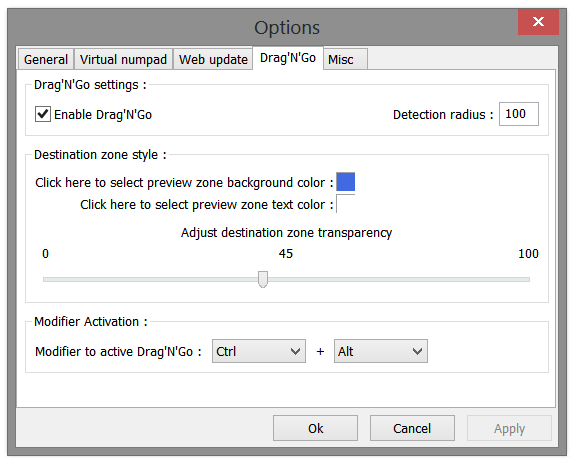
A virtual numpad (a small on-screen arrow pad) is available for users who don’t mind clicking, but find dragging…well, a drag. You click the numpad to snap windows to various available positions. Though the idea itself is good, I found that the numpad tended to disappear inexplicably and remain gone until I restarted the program; even attempts to restore it from the program’s settings were futile. And because the numpad sits immovably at the top-left corner of the screen, it sometimes gets in the way of other windows’ options.

You can activate WinSplit Revolution's window-dragging-to-snapping function from the keyboard.
That quibble aside, WinSplit Revolution is a simple yet powerful program. For convenient window snapping, this app is your best option.
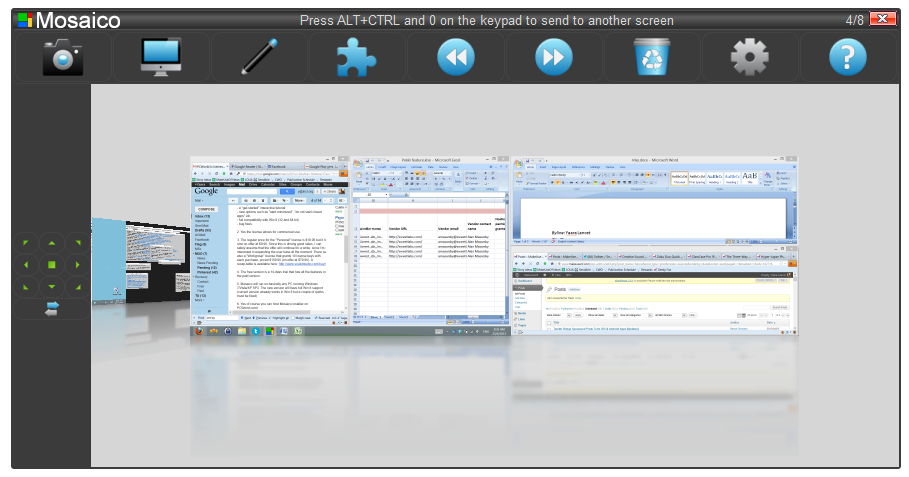
If your window management needs go beyond mere window snapping, however, the $10 Mosaico may be a better fit. Unlike WinSplit Revolution, Mosaico has an actual program interface, and you can use it to create different desktop snapshots for various situations. Once you’re happy with the way your windows are laid out, click the snapshot button to save the arrangement. You can save eight different desktop snapshots and restore them easily from the program’s snapshot browser.

Mosaico's simple interface revolves around taking (and restoring) desktop snapshots.
When restoring a snapshot, Mosaico will open relevant programs if they’re closed, and will minimize others that aren’t part of the snapshot. It can’t, however, open specific documents.
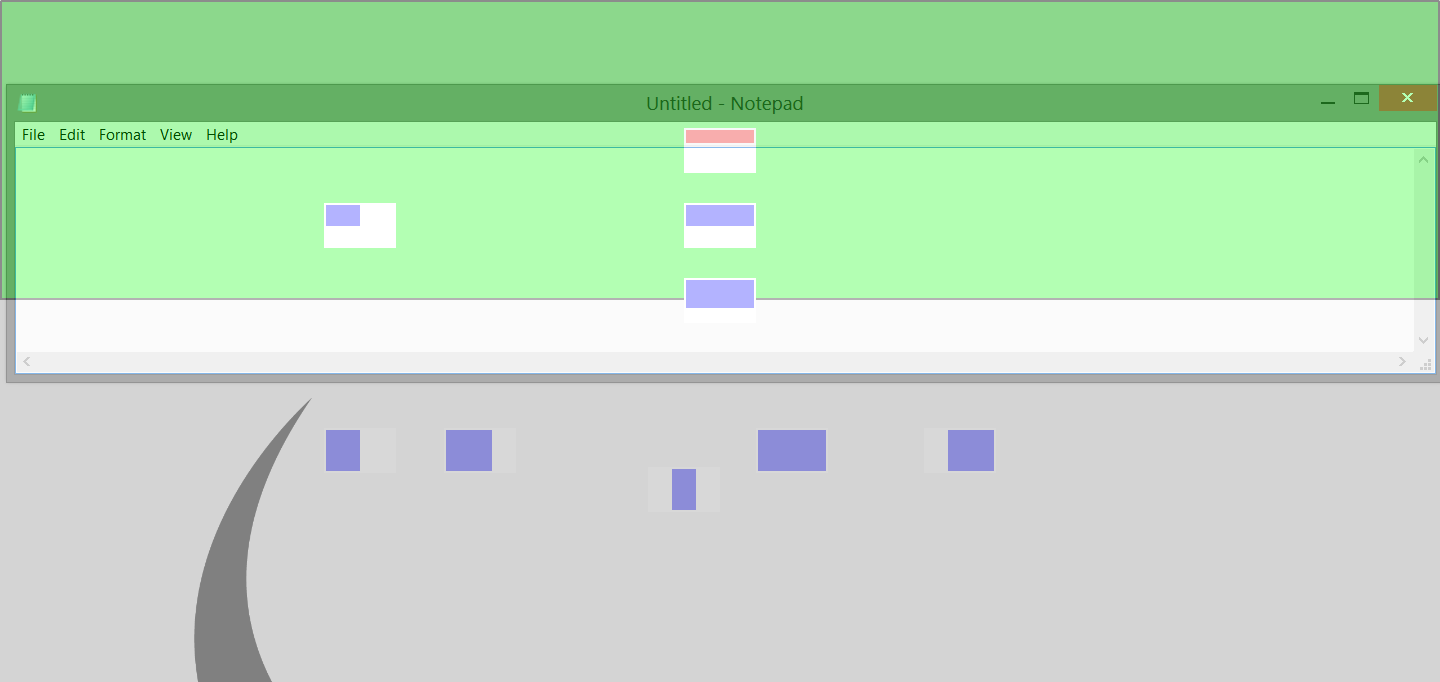
Snapshots aside, Mosaico offers an enhanced window-snapping feature, accessible by clicking arrows on the program’s interface or by dragging windows around. To perform the dragging function, you must first either enable the ‘Arrange manually’ option in the toolbar or press the M key. Mosaico supports multiple monitors well, and it comes with a built-in button for moving windows between monitors.

Mosaico's position previews make it easy to drag windows to an exact position on the screen.
Mosaico’s biggest weakness involves its imperfect state of Windows 8 compatibility. Though the program runs fine on Windows 8, I noticed some quirks, such as random display issues, and the program wouldn’t let me set custom keyboard shortcuts. These issues don’t occur on every Windows 8 system, however, and they should be fixed in the program’s next update. As Mosaico offers a 14-day free trial, you can try the program out to see how it works on your system.
Besides the ability to snap and tile windows, you may need more-advanced features in order to tame your desktop—such as windows that always open on a certain monitor or in a certain size, or easy access to transparency or always-on-top toggles, or program windows that snap automatically to one side of the screen whenever you open them.

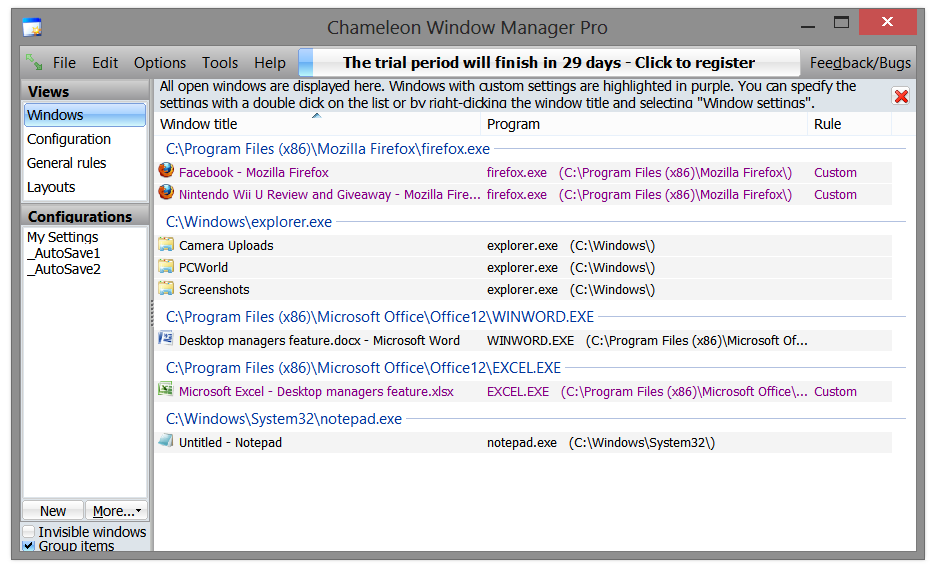
Chameleon Window Manager's interface takes a little getting used to.
Chameleon Window Manager offers these and other features, in one or more of three packages: a very limited free version; a $25 Standard version; and a $30 Pro version. Surprisingly, only the Pro version offers certain basic features such as drag-to-snap, while the Standard version, too, includes some more-advanced features.

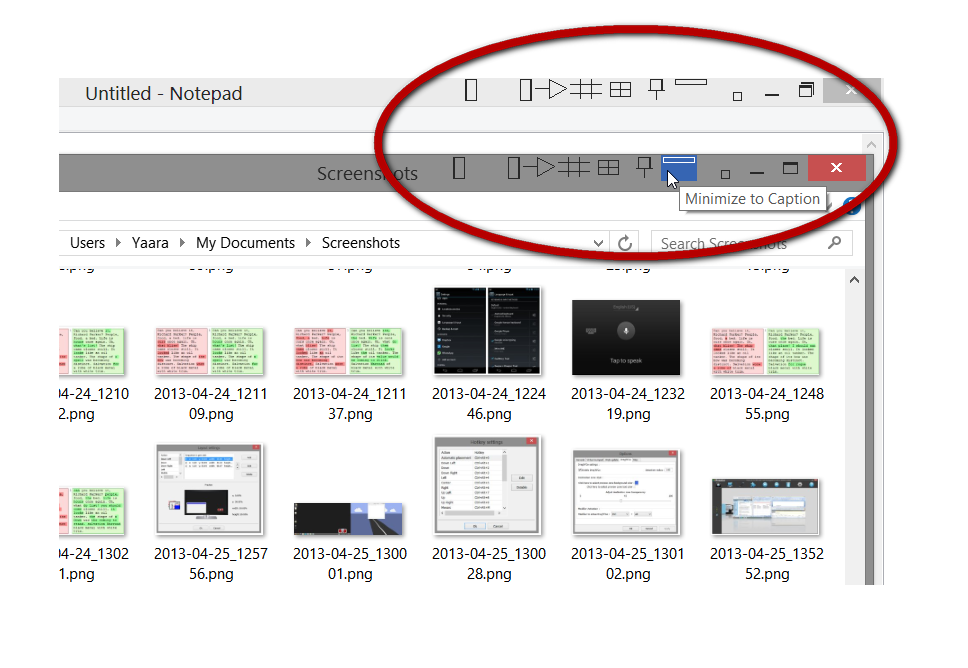
The custom title-bar buttons in Chameleon are reminiscent of a child's drawing, but they work.
Chameleon Window Manager gives you a multitude of options to apply to all of your windows, to specific programs, or even to specific windows within programs. Unfortunately, the interface is cluttered and confusing, so you could spend quite a while setting up everything. For each window, you can dedicate various title-bar buttons to performing actions such as basic snapping, monitor switching, and transparency toggling. Though the buttons are primitively designed, they work. You can save your configuration or create multiple ones and switch among them.

Chameleon's window-snapping layout is completely customizable.
These features look great on paper, but in reality Chameleon Window Manager performed very inconsistently for me. My settings worked only some of the time, windows became transparent when they shouldn’t have, and the title-bar buttons disappeared inexplicably. You could try the 30-day free trial and see how you fare, but competing programs in this roundup offer more-effective window management for the money.
Instead of focusing on how a window behaves when it’s opened, WindowSpace lets you control windows with dozens of customizable keyboard shortcuts. The operations involved range from regular window snapping and moving windows between monitors, to fine-tuning a window’s position on the screen, resizing, rolling up, and toggling transparency.

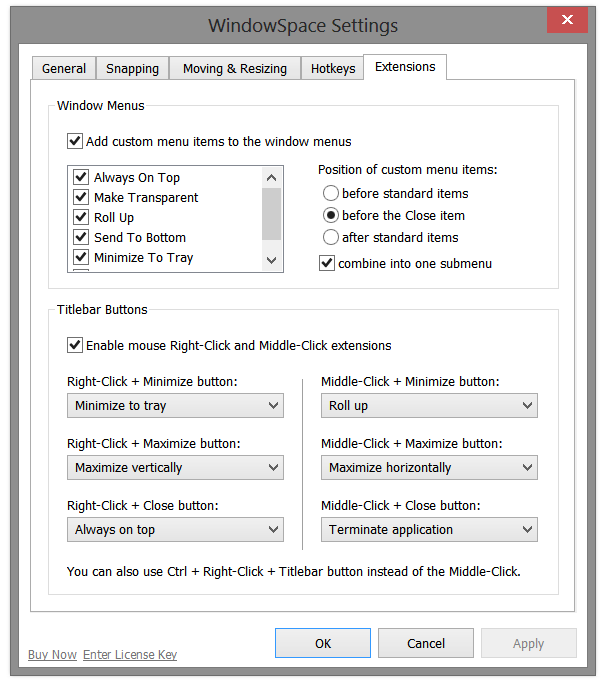
WindowSpace's interface is one big settings screen, and getting acquainted with it takes time.
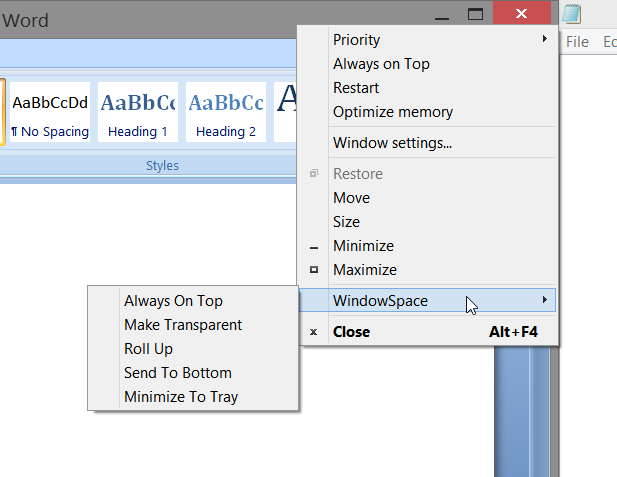
Aside from letting you use keyboard shortcuts, WindowSpace can enhance each window’s title bar with additional context menu items and mouse actions that you can use to specify which menu items you want to add, and even how you want them to appear in the context menu. You can also set title-bar buttons such as Close, Minimize, and Maximize to perform new actions when right-clicked or middle-clicked.
Unlike the snapping function on most other window managers, WindowSpace’s Snapping tab doesn’t automatically send windows to corners. Instead, it concentrates on how windows behave when they’re positioned next to each other: Will they automatically snap to each other, for instance, or will they overlap? WindowSpace makes it easy for you to arrange your windows however you want.

In lieu of buttons, WindowSpace adds configurable context-menu items.
The program’s lack of a real interface—and the number of settings you need to ponder before you can start setting things up—can be confusing at first. Nevertheless, for fine-tuned control, WindowSpace is a solid option. It costs $25 after a 30-day free trial.
The four preceding tools above are free or reasonably inexpensive, but each offers only one set of features. The $50 Actual Window Manager includes every imaginable desktop-management feature, and then some—if you can find your way through the complicated, confusing, and rather unattractive interface.

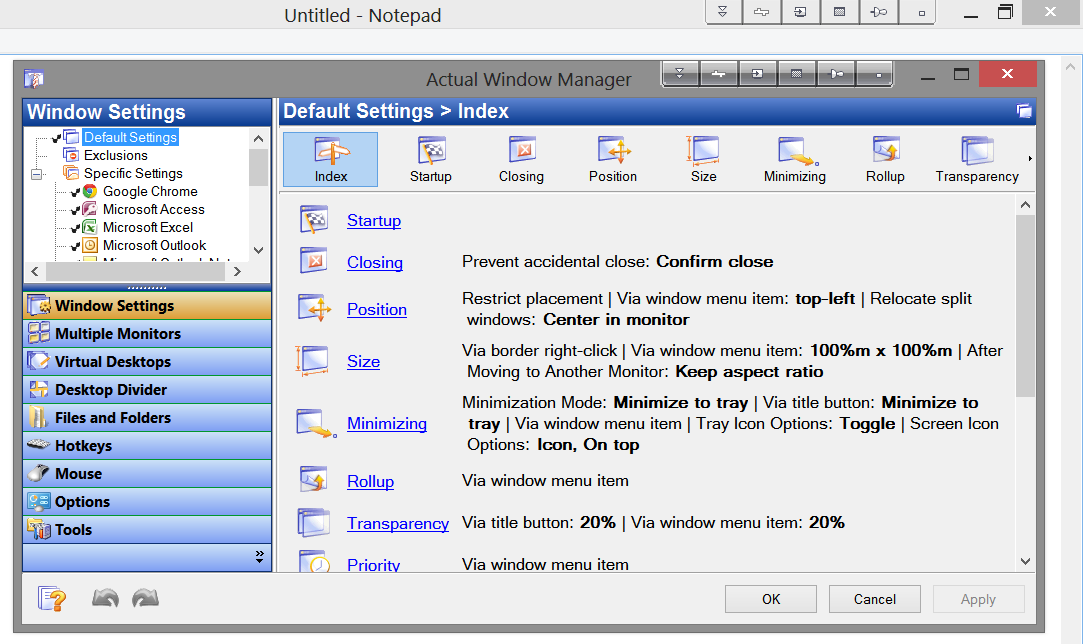
Actual Window Manager's interface teems with countless options and tweaks.
Divided into nine different tabs, Actual Window Manager offers everything from specific window settings, a customized set of title bar buttons, and a configurable desktop grid for dragging and snapping windows, to keyboard shortcuts (dozens of them), window mirrors, virtual desktops, and a flexible Start-menu replacement. Unlike most Start menu replacements, Actual Window Manager lets you add just a Start button, and have the new Windows 8 Starts screen pop out of it, at full size or half size.

You can transform the Start screen's Apps section into a functional Start menu.
The program ably supports multiple monitors, giving you full control of multiple taskbars and their content. It even offers control of wallpaper settings, resolution controls, and other options that you’d normally select and manage through Windows’ native settings. Actual Window Manager includes more options than I could use in a year, and the program’s confusing interface can make them difficult to discover, but everything is there for the finding. All you need is the will to spend $50, the need for abundant features, and the patience to figure them out. The 60-day free trial can help you there.

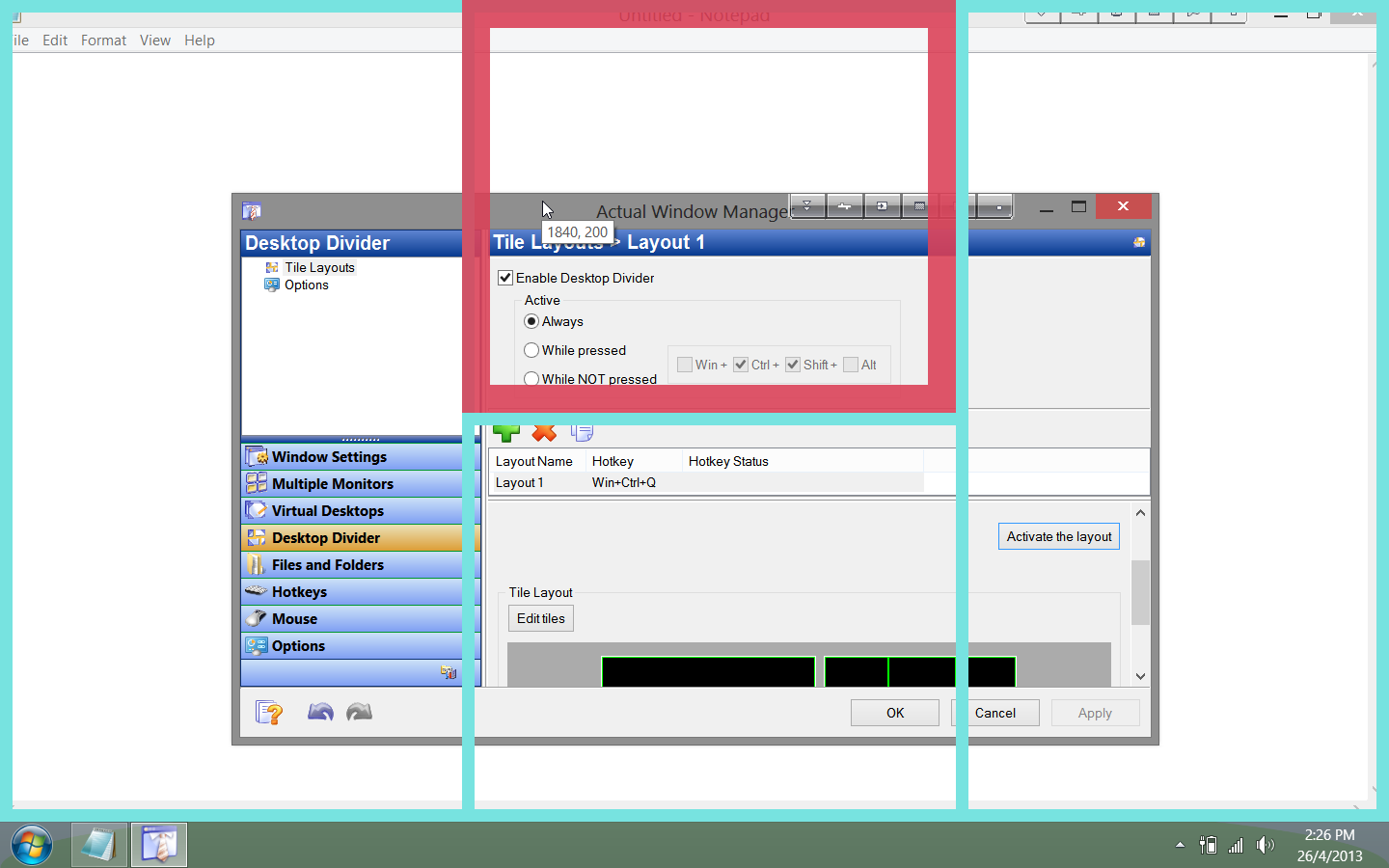
Create your own desktop grids and dividers in Actual Window Manager, and use them to arrange your windows.
Windows is a manageable operating system even without these third-party programs; but once you add their fresh and useful features to the mix, you may find that going back isn’t an acceptable option. Whether you use multiple monitors or just one, a desktop manager can work wonders for your workflow. Try one, and see how well it helps you tame those wild and unmanageable beasts called windows.

Yaara is a foodie, horse-lover, and biologist who enjoys being a geek as a full-time job.
More by Yaara Lancet
View the original article here
 BootRacer BootRacer is a great tool for monitoring your PC's health over a long period of time, but don't expect it to improve performance.Download Now
  BootRacer main menu gives some detailed information about the startup time.
 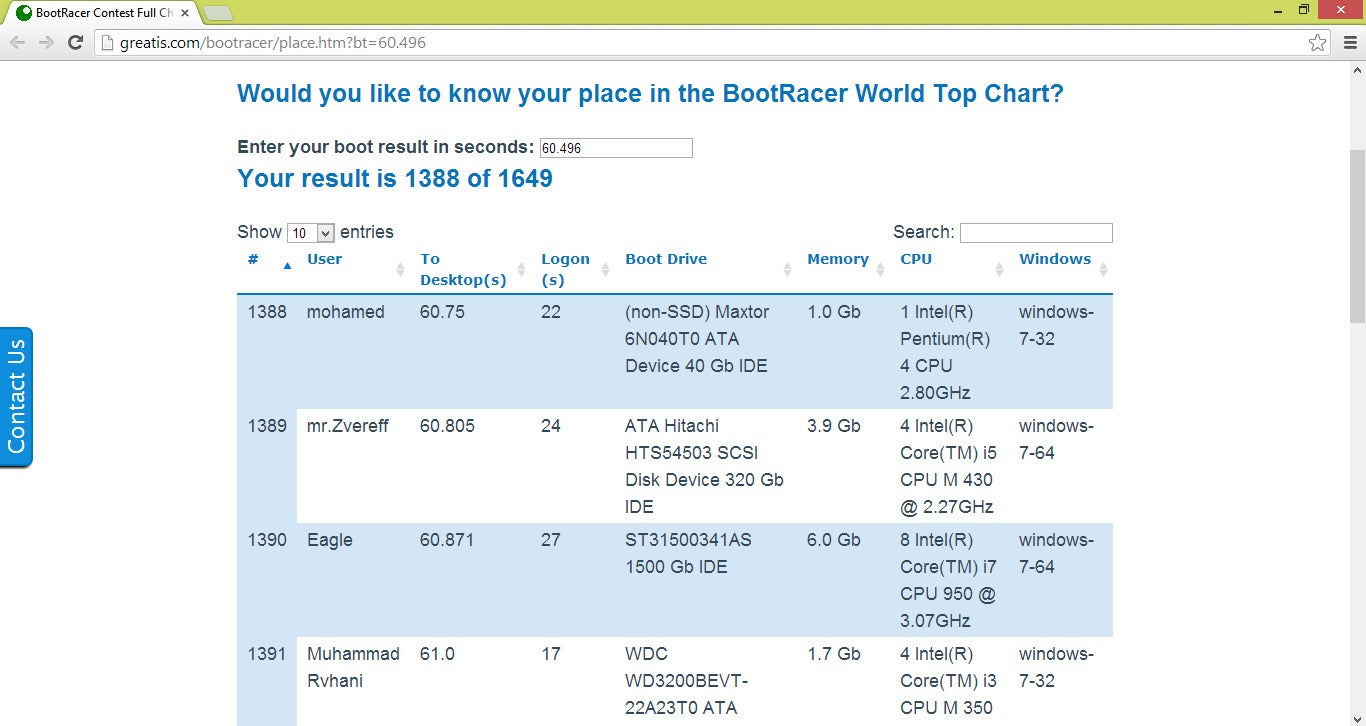 Rank your boot time against those of other PCs running BootRacer.
  A detailed history of your startups can show computer degradation over time.
  You get the green light once your PC is all ready to go,