Showing posts with label Manager. Show all posts

Saturday, July 13, 2013

Review: Dashlane is a robust password manager with a gorgeous interface

AppId is over the quota
Dashlane With its simple interface and myriad of features, Dashlane is a powerful password manager anyone should consider.

Download Now

A password manager is a must. Unless you're using the same password for everything (not recommended) or have a truly phenomenal memory, your productivity can benefit from a place to store all your passwords and easily use them whenever necessary. There are several strong players in this field, such as LastPass and KeePass. Dashlane (free for basic version, $20/year for Premium) aims to take on both.

Dashlane is a robust password manager with additional room for your various IDs, credit cards and other payment methods, receipts, and notes. It comes with an auto-fill feature for online forms to which you can add different addresses, phone numbers, and other personal information you're tired of typing repeatedly. There are two features that make Dashlane stand out when compared to both LastPass and KeePass: Its beautiful and easy-to-use interface, and its optional cloud syncing.

The Security Dashboard analyzes your database, alerting you of weak, recurring, or breached passwords

Setting up Dashlane is exceptionally easy. LastPass and KeePass are both fairly easy to use, but they have nothing on Dashlane. The installation process takes you step by step through setting up the program, with clear instructions and smooth guidance. After choosing your master password for Dashlane--unlike LastPass, there's no "password reminder" here, so you must remember it or lose access to your database--Dashlane will install itself on your browsers (Firefox, Chrome and Internet Explorer are supported), and will lead you through trying out its different features and interface elements.

If you're already using a different password manager, you can import your database into Dashlane pretty easily. The import tool supports databases from Firefox, Chrome, Internet Explorer, LastPass, 1Password, RoboForm, PasswordWallet, KeePess, and custom CSV files, but the tool is a little finicky. For example, my KeePass CSV did not contain a filled-in URL field, as this is not mandatory in KeePass. Dashlane ignored every password that did not come with a URL, leaving me with no way to import my large password database into Dashlane. Fortunately, Dashlane can automatically add new credentials upon logging in to websites, so after using it for several days, most of my oft-used passwords were transferred to Dashlane without much effort on my part.

On every new login, Dashlane will offer to automatically save your credentials

Dashlane's strong yet subtle browser integration makes logging in to websites a seamless operation, but doesn't add unnecessary clutter to your browsing experience. Once a password is stored in Dashlane, it can log you in automatically every time the website is loaded, or auto-fill the credentials without logging you in. If you're opening an account on a new website, Dashlane can generate a strong password for you right from your browser, and store it in your database in one fell swoop.

You can categorize passwords and other information for easy access, and a small blue impala icon in a browser text field will alert you to the fact that Dashlane can auto-fill this for you. If you have more than one account with a website, more than one email address you like to use, etc., clicking the blue impala will open a dropdown menu where you can choose the desired information.

One of the most important aspects of a password manager is security, and with Dashlane, you can select your level of paranoia. Your database is encrypted with AES-256 encryption, only you know the master password to decrypt it, and you can enable Google Authenticator for extra security. Unlike LastPass, where everything is in the cloud, automatic cloud syncing and backup is a Premium feature in Dashlane, so free users don't have to worry about it.

Even if you're a paid customer, however, you can easily opt out of cloud syncs, meaning your password database is only stored locally, just like with KeePass. Unlike KeePass, though, Dashlane's free mobile apps can be managed as separate databases, so you can access your passwords on the go without worrying about constant cloud syncs. When enabled, Dashlane syncs happen every 5 minutes, and there's no way to control or reduce this frequency.

The Premium version also includes Web access to your data from any browser, anywhere

Dashlane is an impressive password manager with some excellent features and a beautiful interface. It does require a certain amount of trust in the company, especially when using its syncing options, and for $20/year, its Premium version is expensive when compared to the alternatives. Nevertheless, it is the perfect password manager for the less tech-savvy, and even the experienced are sure to enjoy it, if only for the merits of its interface. It's available in Android, iOS, and Mac editions, in addition to the PC edition I reviewed.


View the original article here

Monday, June 17, 2013

Review: Easy-to-use window manager Mosaico makes sense of your desktop

AppId is over the quota

If your desktop deteriorates into a morass of windows, look to Mosaico to help you tile them neatly.  You can use this $10 window manager (14-day free trial) to create different desktop snapshots for various situations.

The simple interface revolves around taking snapshots and restoring them.

Once you're happy with the way your windows are laid out, click the snapshot button to save the arrangement. You can save up to eight different desktop snapshots, and restore them easily from the program's snapshot browser.

When restoring a snapshot, Mosiaco will open relevant programs if closed, and will minimize others that are not part of the snapshot. It cannot, however, go as far as opening specific documents.

Snapshots aside, Mosaico also comes with an enhanced window-snapping feature which can be accessed by clicking the arrows on the program's interface, or by dragging windows around. The latter can be achieved by enabling the "Arrange manually" option in the toolbar, or by pressing the "M" key. Mosaico supports multiple monitors well, and features a built-in button for moving windows between monitors.

Position previews make it easy to drag windows to an exact position on the screen.

Mosaico's main weakness is its current state of Windows 8 compatibility. Although the program runs fine on Windows 8, there are some small quirks such as random display issues, inability to set custom keyboard shortcuts, etc. These issues do not occur on every Windows 8 system, and will be fixed in the program's next update.

Note: The Download button will download the software to your system.


View the original article here

Review: Chameleon Window Manager has many features and a few too many bugs

AppId is over the quota

Snapping and tiling windows isn't everything. In your daily use of Windows, you may need more advanced features if you want to really tame your desktop. You might want windows to always open on a certain monitor or in a certain size. You might want easy access to transparency or always on top toggles. You might want certain program windows to automatically snap to one side of the screen every time you open them.

Chameleon Window Manager's interface takes a little getting used to.

Chameleon Window Manager offers all these features and quite a few more, in one of three packages: a very limited free version, a $25 Standard version, and a $30 Pro version. Surprisingly, basic features such as drag to snap are included only in the Pro version, while the other, more advanced, features are part of the Standard version as well.

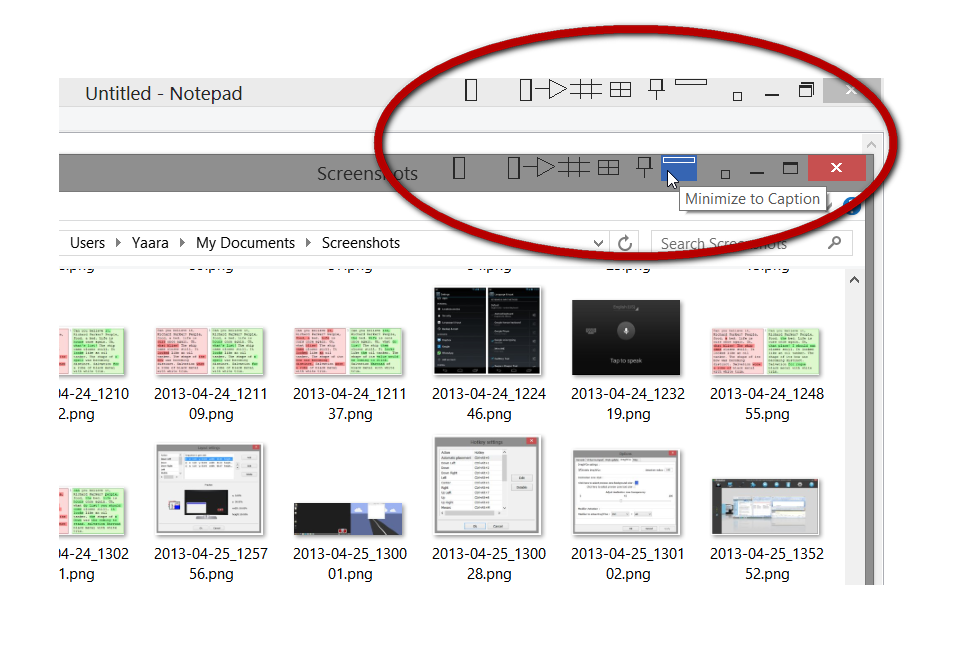
The custom title bar buttons look awkward, but they work.

Chameleon Window Manager's somewhat cluttered and confusing interface includes a multitude of options which you can set for all your windows, for specific programs, or even for specific windows within programs. For each window, you can include various title-bar buttons for actions such as basic snapping, monitor switching, transparency toggling, etc. After spending quite a while setting everything up, you can save your configuration so you don't lose it, or switch between several different ones that you've saved.

The window-snapping layout is completely customizable.

All this is great on paper, but in reality I found that Chameleon Window Manager is a very inconsistent performer. My settings worked some of the times and not in others, windows became transparent when they shouldn't have, and the title bar buttons disappeared without a trace for no apparent reason. Not a great loss, considering these buttons are not the most attractive thing I've ever seen. You can try the 30-day free trial and see how you fare, but considering other options, Chameleon is not the best value for money out there.

Note: The Download button takes you to the vendor's site, where you can download the latest version of the software.

Yaara Lancet

Yaara is a foodie, horse-lover, and biologist who enjoys being a geek as a full-time job.
More by Yaara Lancet


View the original article here

Saturday, May 11, 2013

Crisp up your desktop with a window manager utility

AppId is over the quota

Whether you use one monitor or three, Windows XP or Windows 8, Mozilla Firefox or Google Chrome, you’re bound to have windows on your desktop. And you probably juggle several of them at once.

Windows operating systems come with several built-in management features, but they’re very basic and don’t always play well with multiple monitors. To control a cascade of windows effectively, you need a third-party window manager. I tested five popular ones—some of them free, and most of them inexpensive.

The free WinSplit Revolution is a great starter program. Simple and lightweight, WinSplit Revolution helps you manage multiple windows by assigning hotkeys to different window positions, and by providing a more sophisticated window-snapping feature.

Set up an exact layout for each window-snapping position with WinSplit Revolution.

WinSplit Revolution’s settings are completely customizable, and they handle everything from hotkeys to window-snapping positions, so you can move windows around swiftly and tile them exactly the way you want on each monitor. You can also set keyboard shortcuts for additional actions such as moving windows between monitors and toggling always-on-top desktop position.

A virtual numpad (a small on-screen arrow pad) is available for users who don’t mind clicking, but find dragging…well, a drag. You click the numpad to snap windows to various available positions. Though the idea itself is good, I found that the numpad tended to disappear inexplicably and remain gone until I restarted the program; even attempts to restore it from the program’s settings were futile. And because the numpad sits immovably at the top-left corner of the screen, it sometimes gets in the way of other windows’ options.

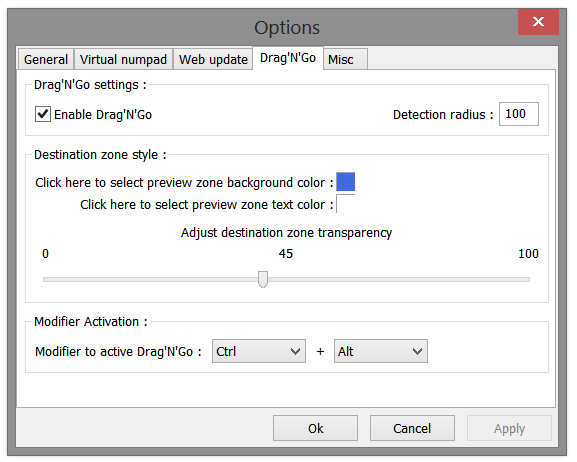
You can activate WinSplit Revolution's window-dragging-to-snapping function from the keyboard.

That quibble aside, WinSplit Revolution is a simple yet powerful program. For convenient window snapping, this app is your best option.

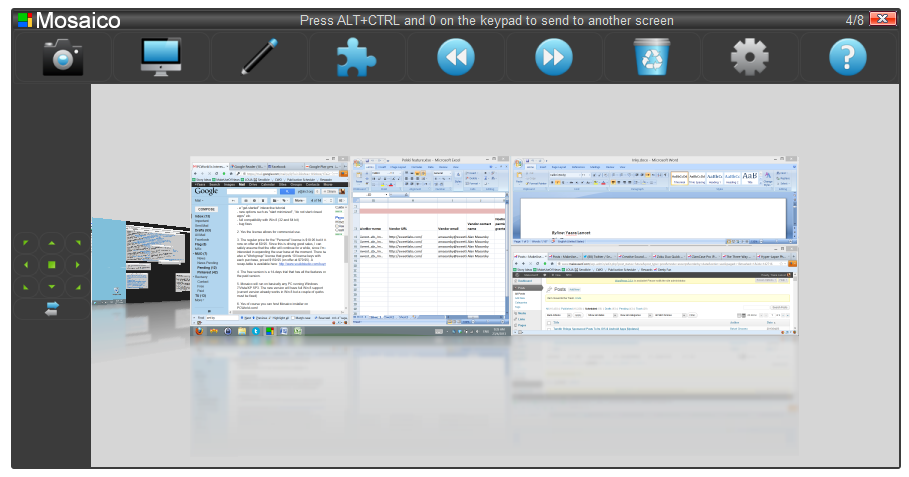
If your window management needs go beyond mere window snapping, however, the $10 Mosaico may be a better fit. Unlike WinSplit Revolution, Mosaico has an actual program interface, and you can use it to create different desktop snapshots for various situations. Once you’re happy with the way your windows are laid out, click the snapshot button to save the arrangement. You can save eight different desktop snapshots and restore them easily from the program’s snapshot browser.

Mosaico's simple interface revolves around taking (and restoring) desktop snapshots.

When restoring a snapshot, Mosaico will open relevant programs if they’re closed, and will minimize others that aren’t part of the snapshot. It can’t, however, open specific documents.

Snapshots aside, Mosaico offers an enhanced window-snapping feature, accessible by clicking arrows on the program’s interface or by dragging windows around. To perform the dragging function, you must first either enable the ‘Arrange manually’ option in the toolbar or press the M key. Mosaico supports multiple monitors well, and it comes with a built-in button for moving windows between monitors.

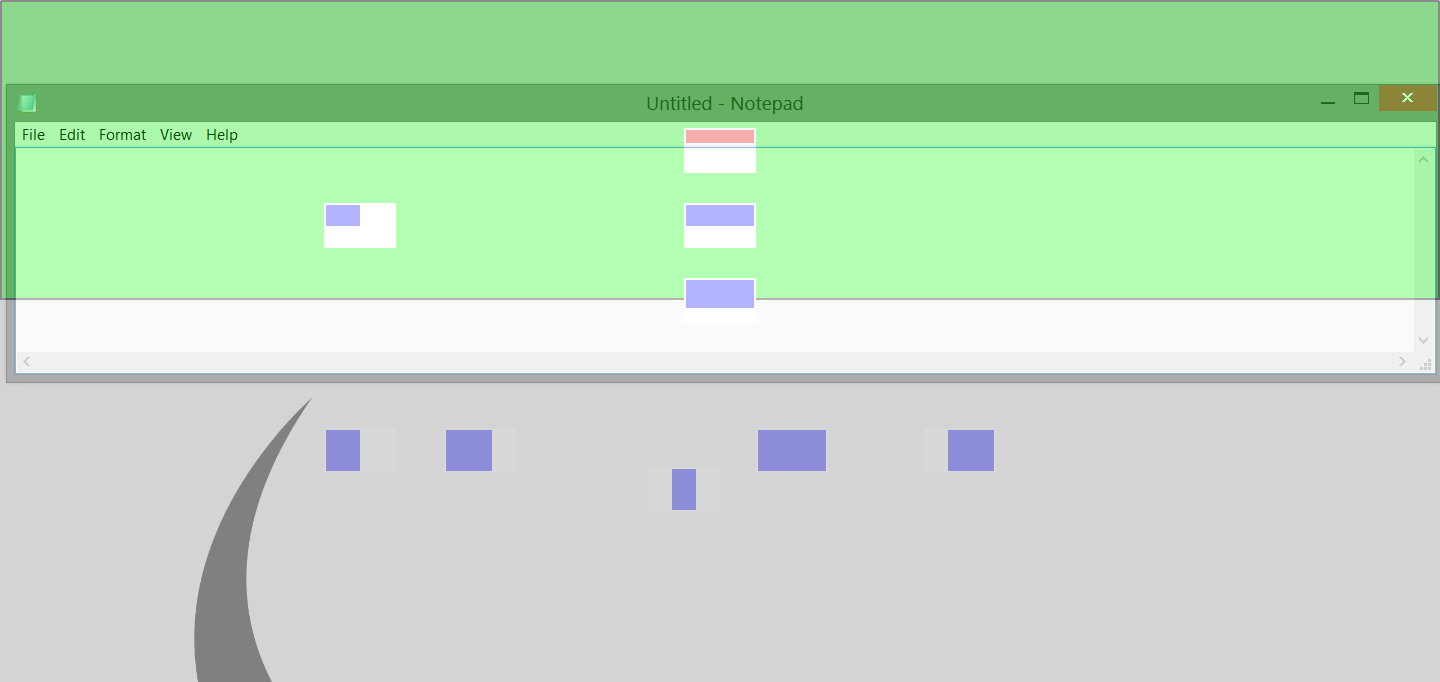
Mosaico's position previews make it easy to drag windows to an exact position on the screen.

Mosaico’s biggest weakness involves its imperfect state of Windows 8 compatibility. Though the program runs fine on Windows 8, I noticed some quirks, such as random display issues, and the program wouldn’t let me set custom keyboard shortcuts. These issues don’t occur on every Windows 8 system, however, and they should be fixed in the program’s next update. As Mosaico offers a 14-day free trial, you can try the program out to see how it works on your system.

Besides the ability to snap and tile windows, you may need more-advanced features in order to tame your desktop—such as windows that always open on a certain monitor or in a certain size, or easy access to transparency or always-on-top toggles, or program windows that snap automatically to one side of the screen whenever you open them.

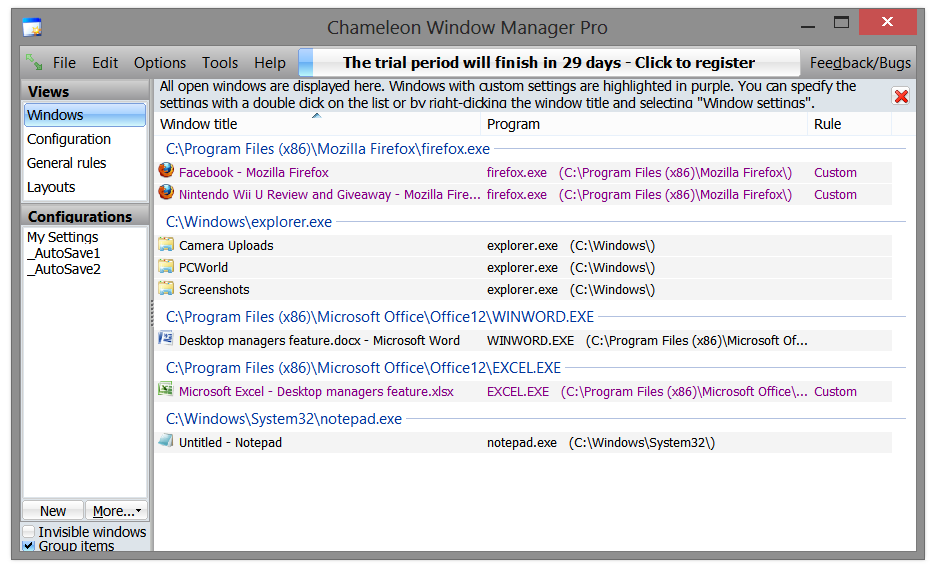
Chameleon Window Manager's interface takes a little getting used to.

Chameleon Window Manager offers these and other features, in one or more of three packages: a very limited free version; a $25 Standard version; and a $30 Pro version. Surprisingly, only the Pro version offers certain basic features such as drag-to-snap, while the Standard version, too, includes some more-advanced features.

The custom title-bar buttons in Chameleon are reminiscent of a child's drawing, but they work.

Chameleon Window Manager gives you a multitude of options to apply to all of your windows, to specific programs, or even to specific windows within programs. Unfortunately, the interface is cluttered and confusing, so you could spend quite a while setting up everything. For each window, you can dedicate various title-bar buttons to performing actions such as basic snapping, monitor switching, and transparency toggling. Though the buttons are primitively designed, they work. You can save your configuration or create multiple ones and switch among them.

Chameleon's window-snapping layout is completely customizable.

These features look great on paper, but in reality Chameleon Window Manager performed very inconsistently for me. My settings worked only some of the time, windows became transparent when they shouldn’t have, and the title-bar buttons disappeared inexplicably. You could try the 30-day free trial and see how you fare, but competing programs in this roundup offer more-effective window management for the money.

Instead of focusing on how a window behaves when it’s opened, WindowSpace lets you control windows with dozens of customizable keyboard shortcuts. The operations involved range from regular window snapping and moving windows between monitors, to fine-tuning a window’s position on the screen, resizing, rolling up, and toggling transparency.

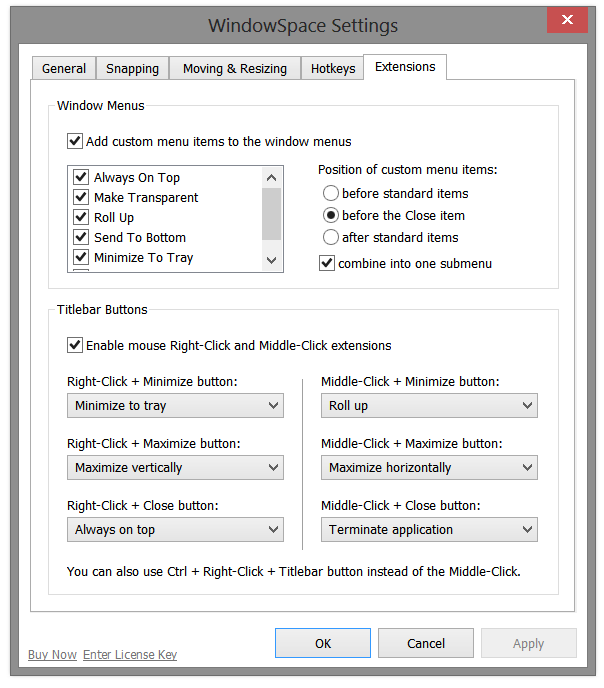
WindowSpace's interface is one big settings screen, and getting acquainted with it takes time.

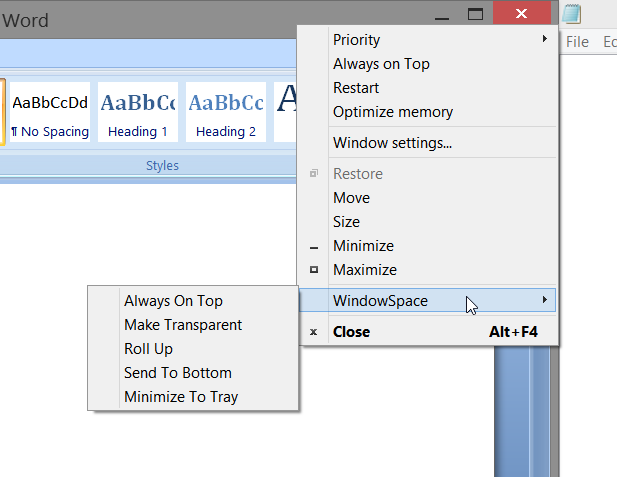
Aside from letting you use keyboard shortcuts, WindowSpace can enhance each window’s title bar with additional context menu items and mouse actions that you can use to specify which menu items you want to add, and even how you want them to appear in the context menu. You can also set title-bar buttons such as Close, Minimize, and Maximize to perform new actions when right-clicked or middle-clicked.

Unlike the snapping function on most other window managers, WindowSpace’s Snapping tab doesn’t automatically send windows to corners. Instead, it concentrates on how windows behave when they’re positioned next to each other: Will they automatically snap to each other, for instance, or will they overlap? WindowSpace makes it easy for you to arrange your windows however you want.

In lieu of buttons, WindowSpace adds configurable context-menu items.

The program’s lack of a real interface—and the number of settings you need to ponder before you can start setting things up—can be confusing at first. Nevertheless, for fine-tuned control, WindowSpace is a solid option. It costs $25 after a 30-day free trial.

The four preceding tools above are free or reasonably inexpensive, but each offers only one set of features. The $50 Actual Window Manager includes every imaginable desktop-management feature, and then some—if you can find your way through the complicated, confusing, and rather unattractive interface.

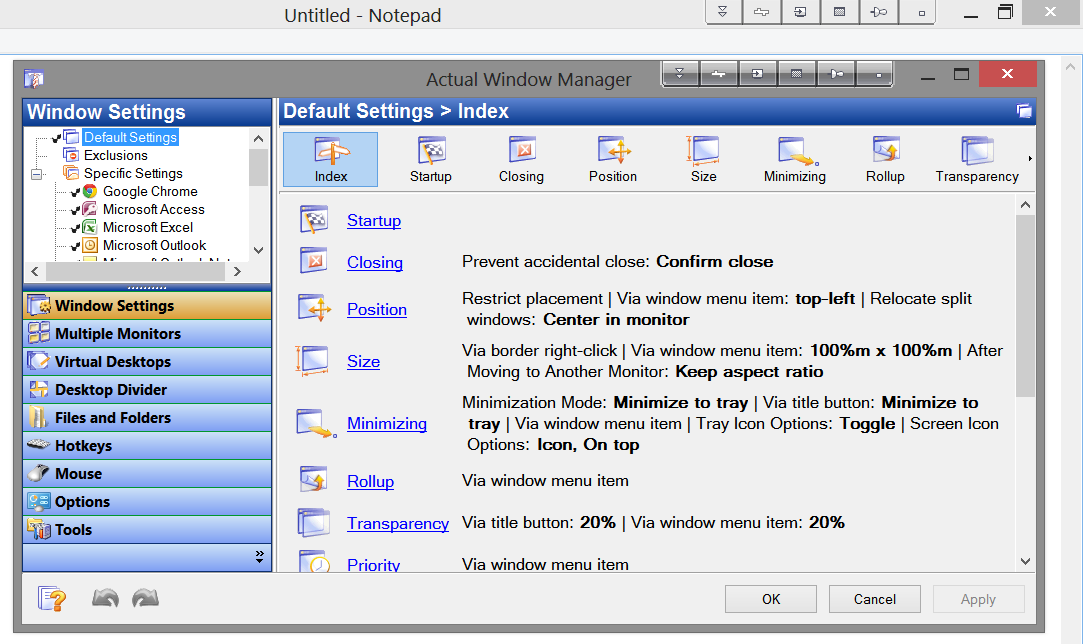
Actual Window Manager's interface teems with countless options and tweaks.

Divided into nine different tabs, Actual Window Manager offers everything from specific window settings, a customized set of title bar buttons, and a configurable desktop grid for dragging and snapping windows, to keyboard shortcuts (dozens of them), window mirrors, virtual desktops, and a flexible Start-menu replacement. Unlike most Start menu replacements, Actual Window Manager lets you add just a Start button, and have the new Windows 8 Starts screen pop out of it, at full size or half size.

You can transform the Start screen's Apps section into a functional Start menu.

The program ably supports multiple monitors, giving you full control of multiple taskbars and their content. It even offers control of wallpaper settings, resolution controls, and other options that you’d normally select and manage through Windows’ native settings. Actual Window Manager includes more options than I could use in a year, and the program’s confusing interface can make them difficult to discover, but everything is there for the finding. All you need is the will to spend $50, the need for abundant features, and the patience to figure them out. The 60-day free trial can help you there.

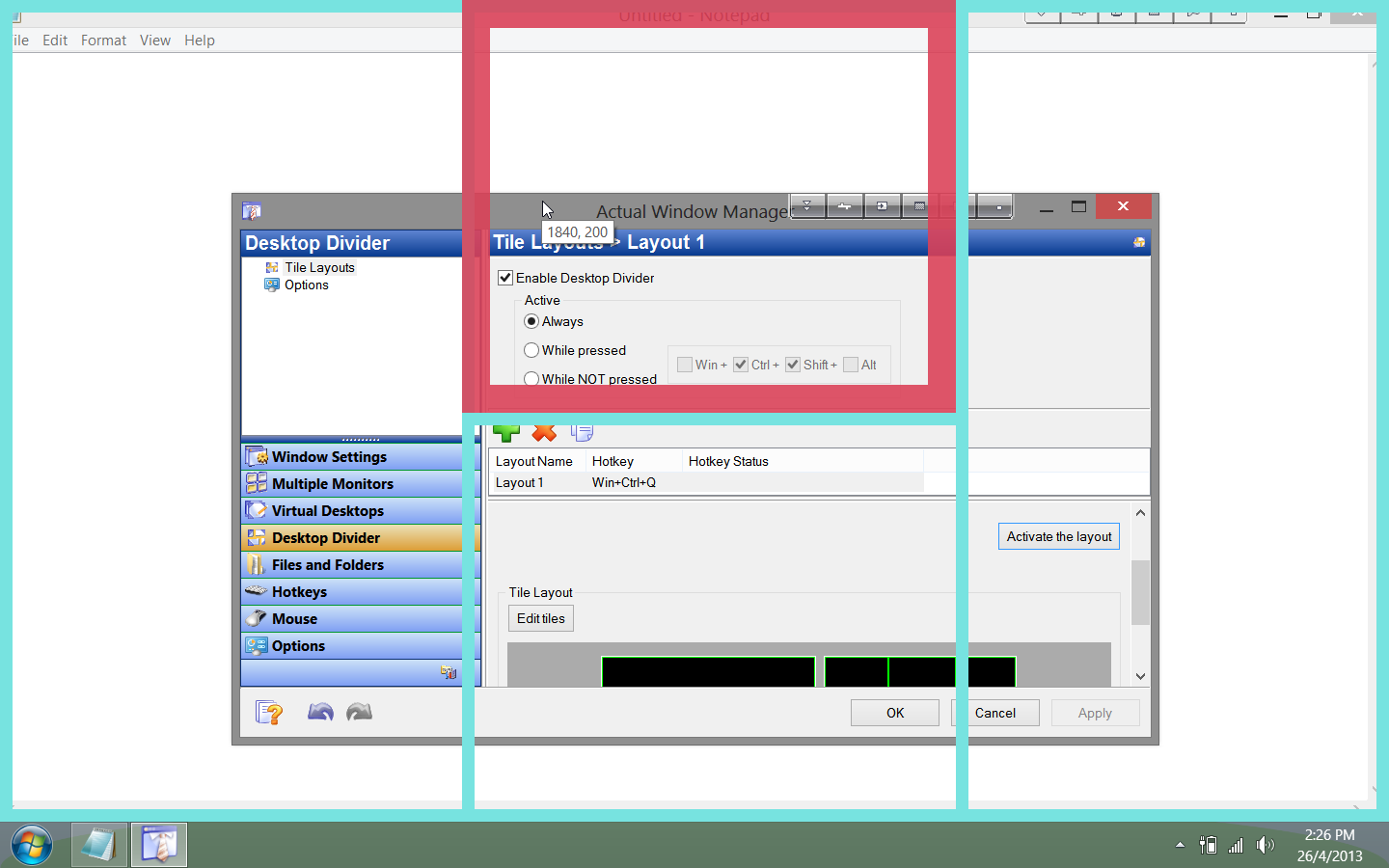
Create your own desktop grids and dividers in Actual Window Manager, and use them to arrange your windows.

Windows is a manageable operating system even without these third-party programs; but once you add their fresh and useful features to the mix, you may find that going back isn’t an acceptable option. Whether you use multiple monitors or just one, a desktop manager can work wonders for your workflow. Try one, and see how well it helps you tame those wild and unmanageable beasts called windows.

Yaara Lancet

Yaara is a foodie, horse-lover, and biologist who enjoys being a geek as a full-time job.
More by Yaara Lancet


View the original article here

Thursday, May 9, 2013

Review: Actual Window Manager 7.5 is packed full of features

AppId is over the quota

The Actual Window Manager ($50, 60-day free trial) includes every imaginable desktop-management feature, and then some. Assuming, of course, that you manage to find your way through the complicated, confusing, and rather unattractive interface.

The interface teems with never-ending options and tweaks.

Divided into 9 different tabs, Actual Window Manager offers everything from specific window settings, a customized set of title bar buttons, and a configurable desktop grid for dragging and snapping windows, to dozens of keyboard shortcuts, window mirrors, virtual desktops, and to top it all off, a flexible Start-menu replacement. Unlike most Start-menu replacements out there, Actual Window Manager has the option to add just a Start button, and have the new Windows 8 Starts screen pop out of it, full size or half size.

The Start screen's Apps section can be tamed into a functional Start menu.

The program supports multiple monitors ably, giving you full control of multiple taskbars and their content, and even going as far as wallpaper setting, resolution controls, and other options you would normally control through Windows's native settings.

Create your own desktop grids and dividers, and use them to arrange your windows.

Actual Window Manager includes more options than I could use in a year, and the confusing interface doesn't make these easier to discover, but you can rest assured: It's all there. All you need is the will to spend $50, the need for such an abundance of features, and the patience to figure them all out. The 60-day free trial could help you there.

Note: The Download button will download the software to your system.

Yaara Lancet

Yaara is a foodie, horse-lover, and biologist who enjoys being a geek as a full-time job.
More by Yaara Lancet


View the original article here

Friday, October 19, 2012

Liz Wilkins, Senior Marketing Manager, Adobe Education UK responds to launch of new comparison website for university courses

Last month’s launch of Unistats by Vince Cable is a positive move during a time of great uncertainty for students, which will help to reassure those that may be questioning the value for money they will be getting from their University now they are paying higher fees.

We’re experiencing the most radical changes to the Higher Education sector in decades. The student experience will naturally evolve as a result – but it’s important that undergraduates who are starting their University careers this Autumn feel it is changing for the better. As well as judging value for money on factors such as teaching hours and future job prospects, our own research* tells us that students are scrutinising access to support facilities such as libraries (60%) and the provision of more than just basic ICT so they can develop the ‘essential’ skills needed for the workplace.

We welcome this fresh approach to supporting students in navigating the new obstacles they face in choosing a University. But for it to have real impact, University Vice Chancellors must ensure they’re in a position to be able to meet the demands of the next generation of student, particularly with regard to the provision of industry standard technology which many young people consider to be instrumental in helping them secure employment later on. Needless to say, those able to adapt their strategies will be far more appealing to students looking for reassurances that they’ll have more than just debt to show for their University careers.

*Adobe Digital Campus report, September 2012

Liz Wilkins is Senior Marketing Manager for Education at Adobe Systems UK. Her involvement with Adobe Education products has seen her work closely with a range of educational institutions, championing the use of digital media tools in the curriculum, and their integration into a number of subject areas in order to better prepare students for the future demands of the workplace. Liz works closely with teachers and administrators integrating software, curriculums, and instructional resources as well as certification options and professional development tools. Through promoting digital literacy in cross-curricular education, teaching essential career skills, and streamlining administrative processes Liz has experience working in partnership with a diverse portfolio of schools and further education institutions.

View the original article here

Tuesday, April 24, 2012

CQ Cloud Manager beta…

Over at the Experience Delivers blog, Pierre Tager – Adobe Group Product Manager for Enterprise Cloud – talks about Cloud Manager, an innovative cloud service enabling reduced time and costs for provisioning, managing, and metering Web Experience Management (WEM) solutions supporting digital marketing initiatives.

In an era where enterprises are facing ever-growing competition, digital marketers are demanding to accelerate their go-to-market strategy to build their brand, while creating demand and increasing reach for their products. As marketers, you’ve all been there: Great marketing campaign idea. Check. Social Community. Check. Implementation time…hmm. That’s where it falls flat. How many times have marketing initiatives been held up due to the time it takes to negotiate and buy software? Provision IT resources? Download, install and configure? Fellow marketers, wait no more! Adobe is bringing it all together with a new technology, that combines the best Web platform and modern cloud computing. Introducing Adobe CQ Cloud Manager, designed to help marketers accelerate time to market and provide competitive differentiation in today’s ever-changing digital landscape.

Read the complete blog post here. 

Join the beta program here.


View the original article here